September 2011 usage statistics

I last reported on usage stats back in February, when Windows 7 had finally tipped the scales to become the OS used by the majority of Paint.NET users. I’m going to use a briefer format this time and just report on the OS and CPU stats so that I can spend more time on another blog entry (in other words, no table and no language stats this time).

Windows 7 has hit 55.75% (previously 44.74%), XP has fallen to 32.99% (previously 39.57%), and Vista has tumbled to only 10.98% (previously 15.55). And in other good news, 64-bit has jumped all the way up to 34.26% (from 26.08%), while only 65.74% of Paint.NET users are trucking around with a 32-bit version of Windows (down from 73.92%). If you haven’t migrated to 64-bit yet, I highly recommend doing so! And also be sure to install the latest service pack for the version of Windows that you’re using (SP3 for XP, SP2 for Vista, and SP1 for Win7).

Some other stats that I haven’t included before:

  • Of the Windows 7 users, 37.70% are using the “RTM” version and 62.23% have upgraded to SP1.
  • Of the Windows Vista users, 19.14% are using SP1 while 79.40% are using SP2. Only 1.40% are using RTM (possibly due in part to having dropped RTM support awhile ago).
  • Of the Windows XP users, 2.63% are using SP2 while 97.34% are using SP3 (possibly due in part to having dropped SP2 support awhile ago).
  • About 98% of the user base is using Paint.NET v3.5.3 or newer.

Paint.NET v3.5.10 is now available

As promised, here’s the update that fixes the shortcut keys for View –> Actual Size.

And as usual, you can either use the built-in updater from the Utilities menu, or you can download and install directly from the website: http://www.getpaint.net/. There’s no need to worry about removing the old version; that is all handled automatically.

The official changelist:

  • Fixed: Ctrl+Shift+A now works again as a shortcut for View -> Actual Size (broken in 3.5.9)
  • Fixed: Ctrl+0 still works for View -> Actual Size even if 10 or more images are open (broken in 3.5.9, it would switch to the 10th image).

Enjoy!

Paint.NET v3.5.9 and Download.com

Update: (October 4th, 4:30pm PST) Download.com is no longer doing this (at least, not with Paint.NET).

I just noticed that download.com updated their listing of Paint.NET to version 3.5.9. Neat. Except that now they’re wrapping it in their download manager which tries to get you to install the “StartNow” toolbar. What a bunch of **** (insert your favorite 4-letter word).

I’ve already sent them an e-mail telling them that this is a violation of the Paint.NET license and to either cease this, or to remove Paint.NET from their site.

In the meantime, I obviously recommend not downloading Paint.NET from download.com.

More info on this despicable practice: Download.com wraps downloads in bloatware, lies about motivations (extremetech.com)

Update: (October 4th, 9:30am PST) I received a reply from them at 2am stating they had removed the download manager from their listing of Paint.NET v3.5.9. However, as of 9am, they have not actually done this. If you go to the Paint.NET v3.5.9 listing on download.com, it still has their spammy download manager attached to it!

A small bug in Paint.NET v3.5.9 with Ctrl+0

Yesterday, I released Paint.NET v3.5.9, which has some good bug fixes, as well as adding back the Korean translation and mapping Ctrl+0 to the View –> Actual Size command. Ctrl+0 is now the “primary” shortcut key listed in the View menu. As it turns out, I forgot to do one small thing. You see, Ctrl+1 through Ctrl+9 are shortcut keys for “switch to image 1” through “switch to image 9.”

As it turns out, I forgot to deactivate Ctrl+0 as a shortcut key for “switch to image 10.” So, if you have 10 or more images open, Ctrl+0 will not work for View –> Actual Size. Thankfully, it does not perform both actions in this case, and you can still use Ctrl+Shift+A or Ctrl+Alt+0. I will be rolling out an update called, you guessed it, Paint.NET v3.5.10, to fix this.

In the meantime, my recommendation is to install v3.5.9. However, if you’re planning on a deployment and would like to save some effort, I advise you to hold off until v3.5.10 is available. It should be next weekend (October 8th/9th) or the following (October 15th/16th). I may take the opportunity to fix another bug if any are found, or maybe to bundle in a performance improvement or two.

For some reason, I didn’t even think of this until precisely 5 minutes after I had finished releasing v3.5.9. Why is it that things always seem to work out like that? Smile

Paint.NET v3.5.9 is now available

As usual, you can either use the built-in updater from the Utilities menu, or you can download and install directly from the website: http://www.getpaint.net/. There’s no need to worry about removing the old version; that is all handled automatically.

Here’s the changes from v3.5.8:

  • Improved: The "Auto-detect" bit-depth setting for PNG, BMP, and TGA now also determines which bit-depth to use based on which one produces the smallest file size, as well as which ones can save the image without losing fidelity.
  • Improved: You can now use Ctrl+0 as a shortcut key for View -> Actual Size, in addition to Ctrl+Shift+A and Ctrl+Alt+0.
  • Fixed: Some text in the DirectDraw Surface (DDS) Save Configuration UI was not being loaded.
  • Fixed: Some DirectDraw Surface (DDS) files authored with other software (e.g. Unreal 2004) could not be loaded.
  • Fixed: In some rare circumstances, clicking on the Save button in the toolbar would crash.
  • Fixed: The Korean translation has been added back in, with the help of Bing machine translation to cover the few remaining strings that were untranslated.

Also, fixes since the 3.5.9 Beta include a few compatibility issues with plugins.

Enjoy!

Paint.NET v3.5.9 Beta (build 4278) is now available

This is a minor update to Paint.NET v3.5. It has some bug fixes, and also adds back in the Korean translation (thanks to Bing translator).

As usual, you can download it directly from the website or you can use the built-in updater. Make sure that you enable “Also check for pre-release (beta) versions”, which you can do by going to Utility –> Check for Updates, and then clicking on the Options button.

Here’s the changes from v3.5.8:

  • Improved: The "Auto-detect" bit-depth setting for PNG, BMP, and TGA now also determines which bit-depth to use based on which one produces the smallest file size, as well as which ones can save the image without losing fidelity.
  • Improved: You can now use Ctrl+0 as a shortcut key for View -> Actual Size, in addition to Ctrl+Shift+A and Ctrl+Alt+0.
  • Fixed: Some text in the DirectDraw Surface (DDS) Save Configuration UI was not being loaded.
  • Fixed: Some DirectDraw Surface (DDS) files authored with other software (e.g. Unreal 2004) could not be loaded.
  • Fixed: In some rare circumstances, clicking on the Save button in the toolbar would crash.
  • Fixed: The Korean translation has been added back in, with the help of Bing machine translation to cover the few remaining strings that were untranslated.

As for paint.net 4.0, progress has been slow the last few months because I’ve been rather busy at work. I work at Microsoft in Windows on a little project called Windows Performance Analyzer (formerly known as “xperf” in some circles). The new version has a completely new UI written using WPF. Our PM, Michael Milirud, presented this at BUILD last week: http://channel9.msdn.com/Events/Speakers/michael+milirud . I highly recommend checking it out, although I’m biased of course Smile

One of the features I’m planning for 4.0 is tentatively titled “Shapes.” Right now you can only draw rectangles, ellipses, lines, and (admittedly lame) freeform polygons. Even MSPaint in Win7 has a larger shapes library. The idea I’ve got is to ship with a much larger list of built-in shapes, but also to allow users to install new shapes (from the forum, or their own imagination, or from wherever). The idea is to use XAML as the serialization format, and to make it compatible with WPF’s Drawings and Geometry objects. This way you can use any existing XAML editor to create the shape. (And this also means I don’t have to write an authoring tool!)

I already have the data format working – I have my own Geometry classes that wrap Direct2D, and was able to get them to roundtrip using XamlServices from System.Xaml.dll (I was quite amazed really – it worked the first time!). Since WPF and Direct2D use the same object model for their Geometry classes, it should be no trouble to auto-convert from WPF XAML files, thus eliminating the need for little annoying conversion utilities. So a XAML shape could use either the Paint.NET Geometry classes, or WPF’s. Probably sitting in a ResourceDictionary. Now, Geometry objects only describe shape outlines, with no fill or stroke parameters. The next thing is to add “Drawing” support. Each element of a Drawing contains a Geometry*, but also includes details about stroke color, stroke thickness, and a fill brush. Imaging you have a vector version of a company logo, with specific brush stroke and fill colors. You could plug that into Paint.NET and use it to draw. And yes, you’d be able to use solid colors as well as gradient brushes.

* In WPF, a Drawing can also contain other elements such as bitmaps or text or whatever.

Dear ATI/AMD, Please fix your video drivers!

I just recently finished a whole lot of code whereby the canvas in paint.net 4.0 is now rendering via Direct2D. This has numerous advantages: layer composition is finally off the UI thread, it’s faster, CPU usage is lower, and I even added back those darned “dancing ants” that everyone seems to be so fond of from ye ol’ version 3.36, etc. etc. Not to mention the next set of changes … which I won’t mention yet. Ok I will: I’m planning to move all rendering off the UI thread. I’m maybe 1/4th of the way there since layer composition is off of it, and now I have to get all of the tools to do the same (much of the rendering code in paint.net is multithreaded, but it still forks/joins/blocks on the UI thread, so the logic is still inherently single threaded).

Anyway.

It’s neat when ATI and NVIDIA keep one-upping each other by adding fancy antialiasing and other gizmo settings into their control panels. It’s fun to download a new game and then shoehorn whatever antialiasing and anisotropic filtering settings you want to use with it. Booting up the original Deus Ex and forcing it to use 131,072x antialiasing is a treat (for about 5 minutes anyway). However, it would be smart if they would not apply those settings to regular desktop applications.

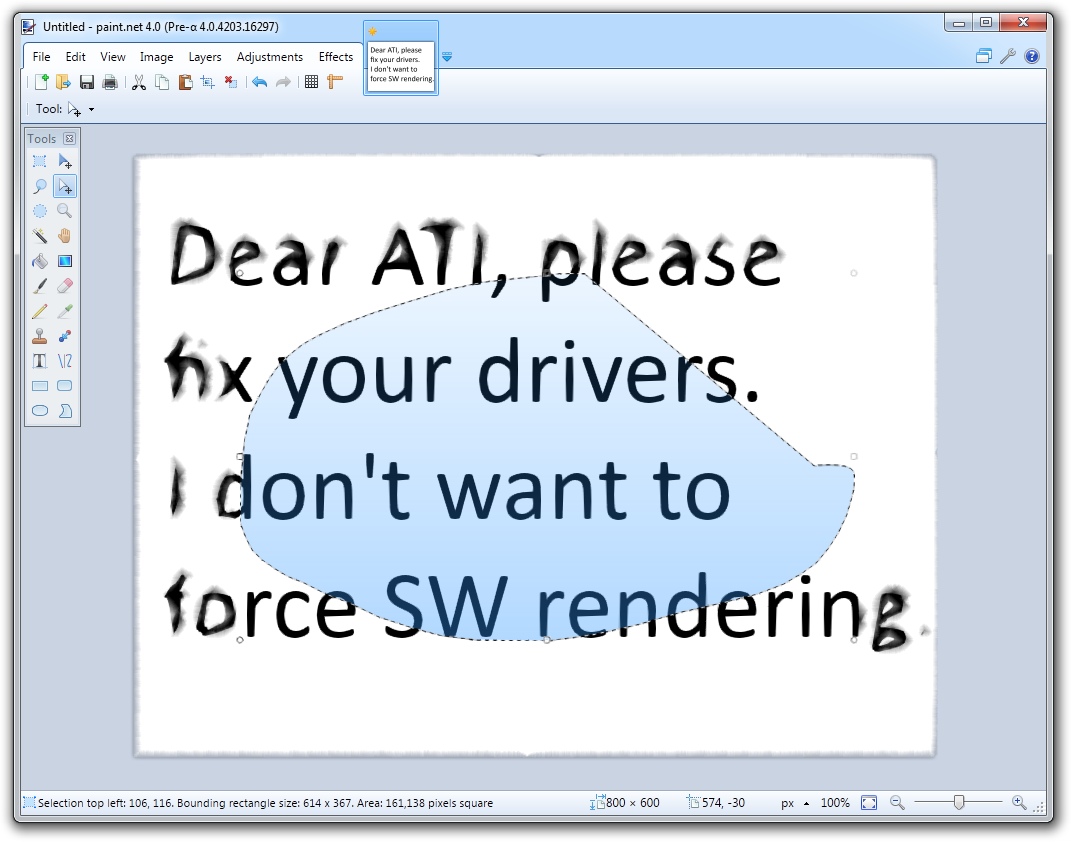
Case in point. If you try to turn on “morphological filtering” on an ATI Radeon 5850 with the absolutely latest drivers downloaded just yesterday from their website: (click for full size)

I wish I had written a filter that made the text look that way. It’s supposed to be normal Calibri, but this “morphological filtering” makes the canvas look like an oil painting that’s being rained on. It’s fully animated and very trippy (hmm, I have some friends who may be interested in this). This also happens with other Direct2D-based applications, such as Windows Live Messenger 2011, so I’m quite sure it’s not some bit of wonky code I checked into paint.net 4.0.

So, here’s my plea to ATI: please fix your drivers so that this doesn’t happen with Direct2D-based desktop applications. I don’t want to add code that detects an ATI video card, and then snoops the registry or whatever you store configuration into, detects this morpho-whatever thing, and then forces software rendering. From what I can tell, all this setting really does is make games blurry and slow, and it’s worse than that “Quincunx” stuff that NVIDIA had on the GeForce 3/4.

And NVIDIA, I’m keeping my eye on you too …

Anyway this Radeon has got to go. My workstation had a GeForce GTX 260 Core 216 in it, and I’ll be reverting to it. I upgraded my gaming PC from the Radeon 5850 to a GeForce GTX 570, and figured why not put the Radeon in the workstation? (which has a Core i7-980x at 4.0GHz btw, mwahaha) The benchmarks show it’s quite a bit faster. Unfortunately this card is just glitchy, for additional reasons other than the LSD setting shown above. I don’t know if it’s because I’m running dual monitors in a weird configuration (one landscape, one portrait), or if I’m just unlucky. It never had any problems playing games. Oh well.


Slow .NET Reflector 7.1 startup? Try this

If you’re using the latest version of .NET Reflector, 7.1, then you are probably experiencing much slower startup times compared to 6.x and earlier. On my system, it takes about 15 seconds for it to start! RedGate is aware of the problem and are burning the midnight oil in order to fix it.

I did some quick profiling using xperf, aka Windows Performance Analyzer, and found an issue that accounted for 7 seconds of CPU usage on a Xeon W3520 (basically a Core i7-920 2.66GHz). Thankfully, no update is needed to work around the issue while RedGate comes up with an official solution. I’ve posted my findings and the quick fix to the RedGate forum. Try it out, and let the RedGate guys know if it helps! There is still much work to be done here, but the quick fix I’ve posted will hopefully provide relief in the meantime.

tl;dr … If you install the Reflector assemblies to the GAC using gacutil.exe, and run NGEN on them, then the startup time is significantly improved.

Paint.NET 4.0 build 4158 screenshot

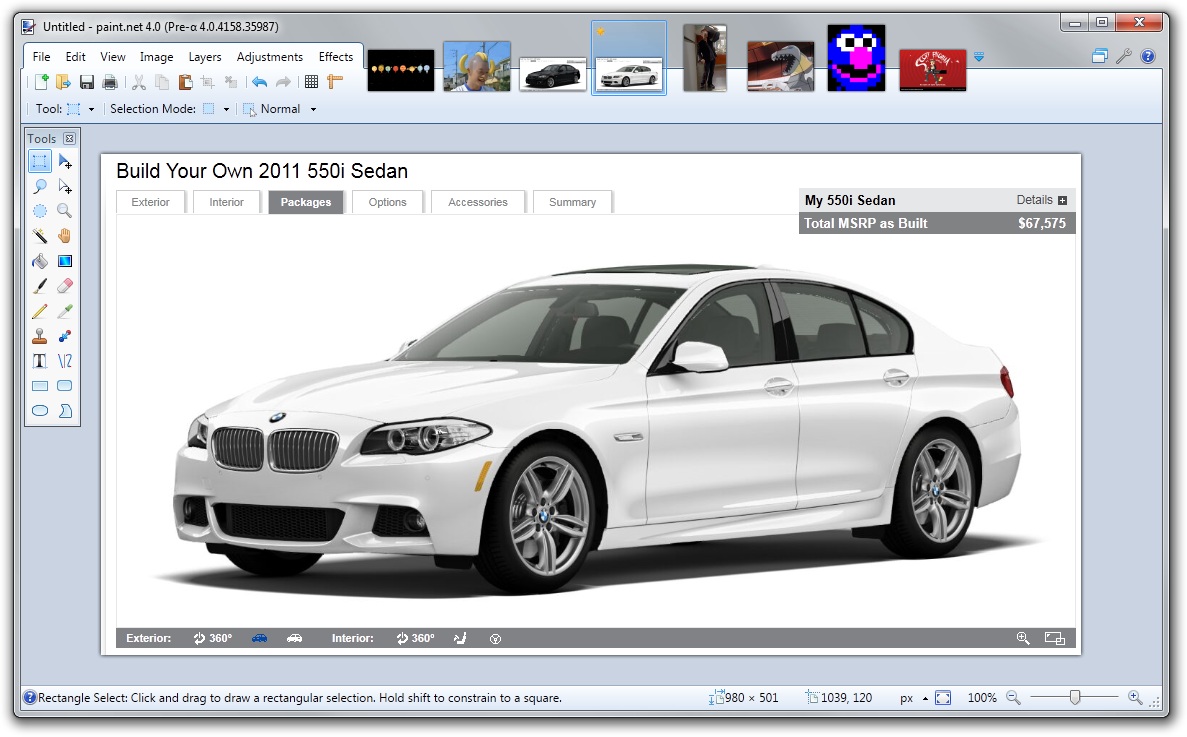
Here’s a screenshot (click for full size):

A summary of the changes so far:

  1. Window, Utilities, and Help menus are now button menus in the top-right corner. They are still menus, and behave as such (as in, they are not some weird custom button control).
  2. The floating tool window now use a more compact, glass-less styling.
  3. The image list has been “pulled up” into the title bar area. This has several advantages. First, if follows the Fitts-Law-friendly convention that Firefox and Chrome have employed whereby the tabs are docked to the top edge of the screen when the window is maximized (the title area is always draggable, for all of us Aero Snap fans). This ensures that the image list does not get “shoved around” when a tool needs more horizontal area (such as the Text tool). And, it ensures more horizontal space for toolbar controls (which will become important later!). 
  4. The zoom and controls have moved to the status bar area, and use a slider instead of a text combo box. It works much like the one in Windows Live Photo Gallery. The units selector has also moved to the status bar.
  5. “Paint.NET” is now “paint.net.”

Some things probably not apparent in the static screenshot:

  1. The image list supports drag-and-drop reordering. The dragging is live (I don’t employ an “insertion arrow” ala Firefox), and sports the same types of reshuffling animations you see in the Windows 7 task bar. Fade in animations are also used when opening or creating an image.
  2. Speaking of Windows 7, each image shows up in the task bar thumbnail list. If you hover over the Paint.NET icon, you’ll see a list of images instead of just 1 thumbnail for the main window. This can be disabled in Settings, just like in Firefox, at which point you’ll get 1 tab for the main window instead of 1 per image.

These are just some of the cosmetic changes. There are, of course, many other little and not-to-little changes.

Paint.NET 4.0 will not support Windows Vista

I’m announcing this now so that everyone has plenty of time to do whatever. I’ve already said before that Paint.NET 4.0 will not work on Windows XP, but I’ve also recently decided to drop Vista as well. The minimum OS will be Windows 7, and it will not work at all on Vista or XP.

Now you know.

… puts on flame-retardant clothing …