Paint.NET v3.20 Alpha 2 is now available

Get it either from the website (http://www.getpaint.net), or from within Paint.NET itself. Note: Make sure you have “Also check for beta releases” enabled. You can access this option by going to Help -> Check for Updates, then clicking on the “Options” button.

Please be sure to report any compatibility problems with plugins! Note: The new plugin system is still subject to change. Plugins written for this alpha are not guaranteed to work with the Beta or Final releases (although I will of course do my best to avoid breaking things).

  • Note: New features will be displayed in English through the Alpha and Beta release(s). The final release will include full translations for the other supported languages.
  • Fixed: Paint.NET would crash if you clicked on the “start cap” or “end cap” buttons for the Line/Curve tool*
  • Fixed: Using Sepia would produce a result identical to Black & White, and would also mess up the undo history
  • Changed: Tolerance slider control is now 25% wider as per request on the forum
  • Changed: Improved the Magic Wand cursor
  • Changed: Improved the Paint Bucket cursor
  • Fixed: OnSetRenderInfo() was being called twice for effects that use the new property system
  • Fixed: Soften Portrait allows “0” for the Softness value again
  • Fixed: Tweaked some of the slider controls in some of the revamped effects
  • Fixed: Compatibility with several plugins

* You would not believe how many e-mails I got about this crash! Good thing it was just an alpha relase!

Paint.NET v3.20 *ALPHA* is now available

Get it either from the website (http://www.getpaint.net), or from within Paint.NET itself. Note: Make sure you have “Also check for beta releases” enabled. You can access this option by going to Help -> Check for Updates, then clicking on the “Options” button.

Please be sure to report any compatibility problems with plugins!

Change log:

  • Note: New features will be displayed in English through the Alpha and Beta release(s). The final release will include full translations for the other supported languages.
  • New: Ability to do ‘Fixed Size’ and ‘Fixed Ratio’ selection drawing with the Rectangle Select tool
  • New: Added selection ‘combine mode’ (replace, add, subtract, xor) to the toolbar. This makes this feature much more discoverable.
  • New: Added magic wand / paint bucket ‘flood mode’ (contiguous, global) to the toolbar. This makes this feature much more discoverable.
  • New: Mandelbrot and Julia fractal render effects.
  • New: Implemented new property and UI systems that makes it much easier to develop effect plugins. Authors may now specify properties with default, min, and max values and the UI for this will be dynamically generated. (instead of the author having to spend hours writing WinForms code)
  • New: Better error handling for plugin effects. They will no longer crash Paint.NET, and will provide easier access to the diagnostic and support information.
  • New: If a plugin fails to load, then a “View Plugin Load Errors” item will be added to the File menu.
  • New: Added ‘Coverage’ property to the Add Noise effect.
  • New: Added ‘Center’ (offset) property to Radial Blur, Zoom Blur, Bulge, and Twist effects. This allows you to set the center of rendering, complete with an image underlay preview.
  • New: Added ability to do counter-clockwise rotation in the Twist effect. Also added ability to change the size of the twisted area in the Twist effect.
  • Changed: In Frosted Glass effect, the performance was highly optimized. Increased max radius to 200 (instead of 10), and added ‘minimum scatter radius’ and ‘smoothness’ properties.
  • Changed: Enhanced all built-in effects and adjustments (except for Layers, Curves, and Rotate/Zoom) to use the new effect UI system.
  • Changed: Reorganized Effects menu into categories: Artistic, Blurs, Distort, Noise, Photo, Render, Stylize.
  • Changed: Command link buttons now look better in Windows Vista.
  • Changed: Moved ‘Median’ from the Blurs menu to the Noise menu.
  • Changed: Rendering for the ‘angle chooser’ control is nicer now.
  • Fixed: Header label flickering in some parts of the UI.
  • Fixed: Some window activation issues with the Save Configuration Dialog if you switched to another program and back while it was open.
  • Fixed: Some buttons and checkboxes were not honoring the theme animations in Windows Vista.
  • New: Added text to installer to remind people that Paint.NET is free of charge, and if they paid for it (other than to donate), then they should ask for a refund (e.g. eBay swindlers).

Note: The new plugin system is still subject to change. Plugins written for this alpha are not guaranteed to work with the Beta or Final releases (although I will of course do my best to avoid breaking things).

Paint.NET finally gets error handling for plugins

For the longest time, any unhandled exception in Paint.NET caused a generic “Oops sorry, go check the crash log on your desktop” error dialog. It’s not really that helpful, and it always points the blame in my direction even when it’s a plugin’s fault.

So, for v3.20 there is a real error dialog for this! If you’re running an effect or adjustment plugin and it doesn’t handle an exception, you’ll get the following dialog instead.

(quick digression: yes, command link buttons in v3.20 now look more like “real” command link buttons in Vista)

Clicking on the Error Details button will show the user details such as the file name of the plugin, its name, and the exception text. If the author implements a [PluginSupportInfo] attribute tag on the effect type and/or assembly, then additional information will be displayed such as author, copyright, and website URL.

If a plugin fails to load, you’ll get this:

Clicking on it reveals the reason why, although this text is really meant to serve as diagnostic information for the plugin author. I don’t expect non-developers to care about most of this except for maybe the file name.

In this case, Ed’s Surface Blur effect was deriving from a class in PaintDotNet.Effects.dll that was really only supposed to be used internally, and that is now using a different base class in v3.20. So his code is all confused and he will need to release an update. The other 10+ effects in his DLL’s still work fine though 🙂

Anyway, hopefully this will relieve my inbox a little and I won’t receive crash reports for plugins anymore.

Fixed Ratio and Fixed Size selections

You asked for it, and now you’re going to get it. This is currently the most passionately requested feature for Paint.NET, and I’ve just finished writing it for the v3.20 release.

This will make it easy, for instance, to select a 4 inch X 6 inch area. Or to do 16×9 ratio cropping to create wallpapers for that awesome widescreen TV you just bought. I have also added a toolbar split-button for selecting the selection combine mode. This does not add new functionality to Paint.NET but does increase the discoverability of this feature, and also ensures some consistency.

The Magic Wand and Paint Bucket tools also get a toolbar button for choosing Contiguous vs. Global flood. Again, this isn’t adding new functionality but falls into the area of making an existing feature more discoverable. I haven’t found a pair of icons that I really like for this yet, so the lightning bolt and globe are currently just stand-ins:

More Paint.NET v3.20 ramblings, and 3 pieces of news

I have some more ramblings about the property system, as well as three bits of news for the v3.20 release.

The more I keep using this new property system and UI generation code, the more I like it. I’ve been able to add a few features to some of the effects, such as the ability to move the center of rendering. This is important for things like radial and zoom blur, as well as many of the distortion effects.

In this screenshot, the “Center” property allows you to click and drag to move where the radial blur is centered on (it is centered on the cat’s right eye – well, your “left” but the cat’s “right”). Adding this to an effect takes as little as one line of code with the way I have set this up (I actually spread mine over 4 lines of code for readability’s sake). I’m really looking forward to extending this system to the Save Configuration dialog (would make it super fast to add 8-bit PNG support yes?), as well as other parts of Paint.NET. The “Layer Properties” dialog could be done very quickly using this code. The Resize dialog would also be a great application for this, and eventually I really want to redo the Colors floating window with all of this. I might redo the “About” dialog as a good starting exercise. See, a lot of UI development is really just an exercise in layout and data binding. And this takes care of it all.

The first news I have is a release date for Paint.NET v3.20: December 15th is the planned date. This means I am hoping to have a beta out by mid-November at the absolute latest. Which means I need to kick it in to high gear and wrap things up really soon!

The second news is that HD Photo support is being dropped from the v3.20 release. The reason is simply that the .NET Framework 3.0 is an enormous download and I’m not ready to require a 1.5 MB image editor to require an extra 50 MB download on 32-bit Windows XP just yet. I wanted to pull in .NET 3.5, but apparently it is 140 MB on 32-bit XP (at least that’s what Beta 2 says) which is just way too much. Maybe after the busy Christmas season I’ll be braver and make the next release require .NET 3.0.

Also, the plugin management that I talked about in previous posts will not
be making it into the v3.20 release. There just isn’t enough time to do it right now while also ensuring the highest quality for the aforementioned property system / UI generation.

Playing with Paint.NET v3.20’s new Property System

I’ve finally settled on the framework code for this new property system and automatic UI generator, at least with respect to Effect configuration dialogs. The beauty of this new system is that it literally only takes me about 5 minutes to convert an effect from the old system to this new system. And, from there, I can experiment with adding, removing, and tweaking properties at a very quick pace.

For example, tonight I went and upgraded many of the effects that come with Paint.NET. For most of them there won’t be much of a difference, such as Add Noise: it’s just two Int32-based sliders. But, for others …

Tile Reflection (v3.10 versus v3.20)


Zoom Blur (v3.10 versus v3.20)


The difference can be quite pronounced. I don’t have to write much code for any of this! Most of the work in these new dialogs is in making sure that the text resources are still loaded properly. I think this will be of great benefit for plugin authors, as it will allow them to use a much more versatile set and quantity of rendering properties, without having to resort to clumsy UI and data binding code.

What’s coming for Paint.NET v3.20: Plugin Development

In a previous blog posting I rambled on about how plugins need to be easier, both for users and developers. I haven’t had a lot of time lately to work on Paint.NET, but I have managed to get started on a new system for developing effect plugins that provide configuration UI for the user. These types of plugins are the most popular: you click on them in the Effects menu and it pops up a dialog with sliders and buttons and whatnot which lets you configure properties that determine how the effect is rendered.

The problem with developing these configuration dialogs is that they are extremely tiresome to write. You can write rendering code for a simple plugin very quickly using CodeLab, but you are limited to a “1, 2, or 3 amount sliders” configuration dialog. If you need 4 sliders, then you have to write a brand new dialog from scratch complete with layout and data binding. It’s easy to get the implementation wrong, or to at least skirt the line of what constitutes a “correct” implementation. My experience has been that if it’s possible to do things “the wrong way,” then your framework needs to be changed: it should only ever be possible to do things the right way, or at least make it extremely obvious when you’re breaking the rules. Right now that distinction isn’t really clear.

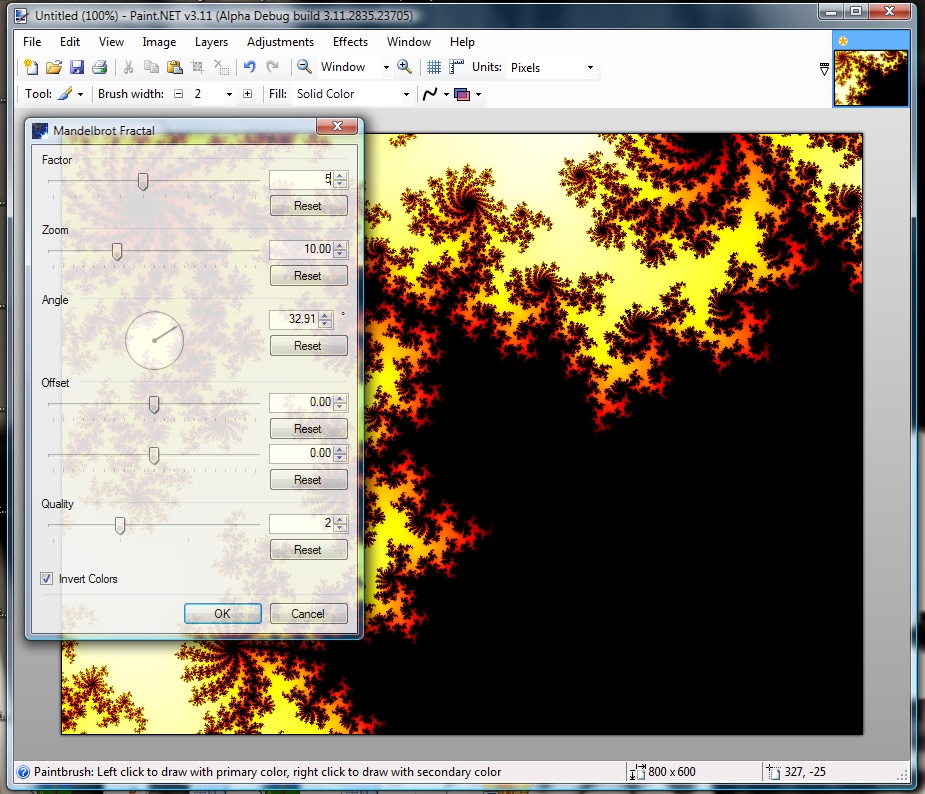
I have been working on a new system that will allow plugin developers to easily get intricate configuration dialogs from just a description of the properties that govern rendering. For example, adding this code in an Effect:

protected override PropertyCollection CreatePropertyCollection()
{
List<Property> props = new List<Property>();

props.Add(new Int32Property(PropertyNames.Factor, 1, 1, 10));
props.Add(new DoubleProperty(PropertyNames.Zoom, 10, 0, 100));
props.Add(new AngleProperty(PropertyNames.Angle));

props.Add(new DoubleVectorProperty(
PropertyNames.Offset,
Pair.MakePair(0.0, 0.0),
Pair.MakePair(-1.0, -1.0),
Pair.MakePair(1.0, 1.0)));

props.Add(new Int32Property(PropertyNames.Quality, 2, 1, 4));
props.Add(new BooleanProperty(PropertyNames.InvertColors));

return new PropertyCollection(props, new PropertyCollectionRule[0]);
}

… generates this type of dialog:

(click for full-size)

All of the layout and data binding is handled automatically, making the plugin author’s life much, much easier. The dialog is resizable, and if there are too many properties to fit on-screen it will automatically provide a scrollbar. The UI itself is still rough draft: the “offset” is still just two sliders right now, for instance, and needs something akin to what we have in the Rotate/Zoom dialog. This system and the UI generation should only improve with time. Eventually I want to have the Rotate/Zoom, Curves, and even Levels configuration dialogs written using this. So far I have an enhanced version of Frosted Glass using this, and have re-done the UI for Clouds up to feature parity with v3.10.

But the great thing about being able to easily get this UI is that it is also very easy to change it. What if you want to change the ordering? Add a property? Remove two properties? It’s easy. Just change the code in your CreatePropertyCollection() function.

Once this system is mostly finished for Effect development, I will also be extending it to the UI generation for file type plugins. This will allow me to provide rich configuration for things like HDPhoto, but without having to write a lot of the complicated logic that governs its data binding and property value dependencies (“property Z may only be configured if property M is enabled” … barf).

The other thing some of you may have picked up on is that the code above could easily be auto-generated from, for instance, an XML description of the same properties. This system is being designed to make code generation scenarios simple to implement, such as for CodeLab.

Lastly, once the system is well understood, I will rewrite the “Colors” floater window using the same UI generation and property system. That thing is about 5,000 lines of code and is very fragile. It has grown organically since 2004 and is in very sad shape. It works, but only because it has been thoroughly debugged. I much prefer code that works because it was meant to work (i.o.w. it works by design, not by accident).

Paint.NET v3.10 – Final release is now available!

Well, it’s finally here! You can get it from the website, http://www.getpaint.net/ , or via Paint.NET’s built-in updater (Help -> Check for Updates). This release adds two new effects originally written by David Issel (“BoltBait”), support for the DDS file type originally written by Dean Ashton, as well as numerous small bug fixes and some visual fit and finish.

Change log:

  • New: Soften Portrait effect, by David Issel, http://www.BoltBait.com .
  • New: Ink Sketch effect, by David Issel, http://www.BoltBait.com .
  • New: DirectDraw Surface (DDS) file format support, by Dean Ashton, http://www.dmashton.co.uk/ . Improved from the original source code by optimizing the DXT compression library (“Squish”) to take advantage of multiple cores / processors.
  • New: “Paint.NET Search”, available from the Help menu (shortcut key is Ctrl+E), allows you to search for Paint.NET help, forum posts, tutorials, plugins, and other related material: http://searchpaint.net (Note: This feature is only available in English.)
  • Improved: Visual fit-and-finish for the Layers window.
  • Improved: Visual fit-and-finish for the close / ‘X’ button on image thumbnails.
  • Improved: Small (about 5-10%) performance improvements for some effects such as Oil Painting, Frosted Glass, and Gaussian Blur.
  • Improved: Increased max brush size to 500, as per forum members request.
  • Improved: Expanded list of available font sizes up through 288.
  • Changed: The keyboard shortcut key for the Color Picker is now ‘k’. This makes it so that the toolbar option, “After click: Switch to previous tool”, is not useless for those using the keyboard shortcuts.
  • Fixed: In some cases, undoing an action that removed a layer would result in the un-removed layer not showing up until you resized the Layers window (“ghost layers”).
  • Fixed: Pressing F1 from the main window no longer launches the online help in two browser tabs.
  • Fixed: Adding a new layer now adds it above the currently active layer, instead of at the very top of the layer list.
  • Fixed: Merge Down now activates the merged layer instead of the one above it.
  • Fixed: In Vista, clicking on a URL link from the installer will no longer launch the web browser with inherited, elevated privileges.
  • Fixed: Pressing Ctrl+[ no longer cancels out of drawing a line/curve, but instead decreases the brush size by 5 as expected.
  • Fixed: Ctrl+clicking on the brush size +/- buttons now changes the brush size in increments of 5.
  • Fixed: Save Configuration dialog would “creep downward” from its last position every time it was opened again.
  • Fixed: TGA codec now saves the * of alpha bits to the image descriptor byte. This was causing some other applications to load TGA files saved with Paint.NET as solid black images.
  • Fixed: Clicking the ‘X’ to close the Layer Properties dialog was not reverting changes made to the layer while the dialog was open.
  • Fixed: Installation will not proceed unless Paint.NET is closed, and will also not allow Paint.NET to be opened until installation is completed. This helps to ensure a fully coherent and complete installation or update.
  • Fixed: If a file failed to open, and there were no open images, and the user pressed either the Zoom In or Zoom Out toolbar buttons, then Paint.NET would crash.
  • Fixed: In Vista, it was possible to crash the Save As dialog by typing a filename that was too long.
  • Fixed: In Vista, it was possible to crash the updater if you let the UAC prompt time-out.
  • Fixed: It was possible to crash Paint.NET on some systems by clicking on a tool in the Tools window while the “Save As” dialog was open.

Enjoy!

Paint.NET v3.10 Beta 2 is now available!

There were enough code changes and additional fixes to warrant a second beta, so here it is! Anyway, get it in the usual places: (1) from the website, http://www.getpaint.net, or (2) via the built-in updater. Make sure that “Also check for pre-release (Beta) versions” is enabled.

Changes:

  • Changed: Increased max brush size to 500, as per forum members request
  • Fixed: Some layout issues with the Save Configuration dialog and the DDS configuration control
  • Fixed: In some cases, undoing an action that removed a layer would result in the un-removed layer not showing up until you resized the Layers window (“ghost layers”)
  • Fixed: Pressing F1 from the main window would launch the online help in two browser tabs
  • Fixed: Adding a new layer now adds it above the currently active layer instead of at the very top of the layer list
  • Fixed: Merge Down now activates the merged layer instead of the one above it
  • Fixed: Put the ‘x’ close button back in the Layer Properties window (managed to fix the bug w/o necessitating removal of the ‘x’)
  • Fixed: In Vista, clicking on a URL link from the installer will no longer launch the web browser with inherited, elevated privileges

Enjoy!