GPU Blur Effects pack for Paint.NET

Bruce Bowyer-Smith has gone to the extraordinary effort to write a pack of GPU-accelerated effects for Paint.NET. It started out with a preview discussion in Plugin Developer’s Central that eventually led to a recent “public” release over in the normal Plugin publishing section.

The pack contains GPU accelerated versions of Gaussian Blur, Motion Blur, Radial Blur, Zoom Blur, as well as a new Channel Blur.

A GPU that supports DirectCompute is required along with Windows 7, or Windows Vista SP2 with the Platform Update (it needs DirectX 11, in other words). Most recent NVIDIA and ATI/AMD cards support this, although Intel’s do not. The latter is a big reason why I have not properly pursued this for Paint.NET yet – there is no high-performance software fallback for DirectCompute. (The “reference driver” does work, but is very slow because it’s intended to render “perfectly” without any regard to performance, and is mostly useful for GPU and driver engineers to make sure they are on the right track.)

It’s interesting to watch these effects execute, because they aren’t any faster on smaller images (and often slower). However, as the size of the image increases, the performance delta becomes very dramatic. The GPU versions just don’t seem to run any slower, while the CPU-based effects quickly lag far behind. These effects are probably hindered by Paint.NETs CPU-centric rendering model, so I wouldn’t be surprised if further performance jumps are possible.

The only downside I’m seeing is that, so far, it is limited to handling images that fit within the maximum texture size that your GPU supports. On a high end video card, that means 8,192 x 8,192 pixels (IIRC).

Paint.NET v4 gets a Settings dialog

I’ve said for a long time that I didn’t want a “Settings” dialog in Paint.NET. I honestly felt that providing as few settings as possible, as well as reasonable defaults for the ones that did exist, was the best way to go.

However, it’s finally to the point where it actually makes sense to consolidate the few settings that Paint.NET has into a proper Settings dialog. This also opens up the ability to easily add new settings where it makes sense.

Here’s a preview:

The “Choose Tool Defaults” dialog will also be folded into this.

I’m using IndirectUI to auto-generate and auto-databind most of this. This is the same system that is used for most of the effect and file type configuration UI as well. It’s a versatile system and is saving me a lot of time. Getting the new application settings system (the data and storage model) up and running has taken a bit of time, but adding any new setting or settings section only takes a few minutes. The dialog here didn’t take much time at all, either.

Effect plugins will be able to query the “Default Quality Level” setting and apply it as they see fit, along with any other settings that end up being pertinent.

Oh, and I’m using DirectWrite to render all of the text now. It works really well, looks great, and is configurable (if you prefer the “GDI Classic” mode, well then just change the setting). Even the buttons are no longer using GDI+, and also have the animations that “real” buttons in the rest of Windows have (this is a change throughout Paint.NET, not just in the Settings dialog).

As usual, the icons are from the excellent Fugue Icon set.

Rotate/Zoom and IndirectUI in Paint.NET v4.0

In my last post I briefly mentioned that Rotate/Zoom had been converted to use IndirectUI. In the current release (v3.5.5) it is implemented with a custom WinForms dialog along with manual data binding, etc. It works fine and simply wasn’t a priority to convert in the v3.5 timeframe.

Well, here’s how it looks now:

It certainly fits in better with the rest of the UI now. The “roll ball 3D” control will also be available for plugins to use. In addition, thanks to some polite prodding by a prominent plugin author (pyrochild), I’ve added the ability to use the regular angle chooser control with a constrained range. Currently, only angle ranges of [-180, +180] and [0, +360] are permitted.

The greyed area shows the angle range that is not permitted.

I’m also planning to add the ability for IndirectUI-based effects and file type UI to use tab pages. This will be useful for having Basic/Advanced pages for file types, and to have more configurable effect properties without resorting to a “tall” UI dialog.

Anyway, that’s all for now!

Paint.NET v3.5.5 and .NET v4 woes

image The transition to .NET v4 with Paint.NET v3.5.5 has not gone as smoothly as I expected. Right after I released the beta, I immediately started receiving reports of installation problems. Now, before I go into more details, I would like to assure everyone that nothing bad was actually happening. Systems weren’t corrupted, there was no data loss, etc. These weren’t even installation failures, per se; things just weren’t connected seamlessly like they were supposed to be. Clearly it wasn’t ready for prime time.

No, the problem was much more subtle than that and sadly didn’t show up in any of my testing. The reports were along the lines of, “.NET 4 installed and then Paint.NET didn’t do its own update.” If you then tried to run the Paint.NET installer again, nothing would happen: the extractor would run, you’d get a beep, and then nothing. After a reboot, however, you could then run the installer and everything would work great.

As it turns out, on Vista and Win7, .NET 4 first requires an update to some OS components (which it installs automatically). This update, like all other OS updates (e.g., via Windows Update), will not install if a reboot is already pending from another OS update. After that, .NET 4 can install itself. Then the final kicker is that you can’t run a .NET 4-based application until after another reboot. On “Patch Tuesday” it would be very common that TWO reboots would be needed. My installer simply can’t survive across a reboot, nor do I have a desire to implement the code to enable this. I certainly can’t add this code within the timeframe of a 0.0.1 update.

As Liz Lemon on 30 Rock would say, “Nerds!”

image

Let’s just go ahead and get it out of our systems: blah blah blah, reboots suck, what’re those Micro$oft morons* thinking, blah blah blah, Lunix wouldn’t do that because of course it’s perfect, blah blah blah. Now, let’s go back to being adults and just accept that this is the way it works, for better or worse. Please don’t spam the comments box with tirades about reboots. I don’t know why an OS update is necessary, but I sincerely doubt the .NET folks would have done this without a really good reason.

Anyway. This wasn’t the case for .NET 3.5 SP1: even if its installer reported that a reboot was necessary, it was still possible to run the Paint.NET setup wizard (which is a .NET 3.5 SP1 app) and defer the reboot until after everything was completed. More often than not, a reboot was not needed. I think I’ve only seen a reboot needed when installing on XP, mostly when Windows Installer 3.1 also had to be installed.

So, here’s the new plan for Paint.NET v3.5.5. It will not require .NET 4. It will still be based on .NET 3.5 SP1, but with a few important changes to pave the way for a hard dependency on .NET 4. If Paint.NET detects that a reboot is pending from a system update, then it will not auto-check for updates (clicking on Check for Updates will still work as normal). This will help to avoid the confusion when .NET 4 requires a reboot before it can install. I never implemented this before simply because it wasn’t necessary.

I still want to avoid end-user confusion related to .NET’s side-by-side nature. Unlike conventional wisdom might assume, .NET 4 does not include .NET 3.5 SP1 (or 3.0, 2.0, 1.1, and 1.0), which means many people would have installed .NET 4, uninstalled .NET 3.5 SP1 (why would you need it if you have the newer version, after all?), and then hit an error from Paint.NET saying that .NET 3.5 SP1 was required. This is exactly the same problem we had when .NET 2.0 came out and Paint.NET v2.5 still required you to install .NET 1.1. Back then I got more than a few grumpy and indignant e-mails and forum posts from people and calling me bad names because of this. It didn’t even matter that Paint.NET v2.6 was a few weeks away from release at the time.

In order to avoid this confusion, Paint.NET v3.5.5 will support running on a system which has .NET 4 but not .NET 3.5 SP1 installed. However, if both of them are installed then Paint.NET will use .NET 3.5 SP1. This keeps things much simpler for myself and, especially, for plugin authors. If you really do want to run Paint.NET v3.5.5 on top of .NET 4 (and let’s face it, we all want the latest shiny stuff), that will still be possible with a minor tweak to the PaintDotNet.exe.config file: just swap the order of the <supportedRuntime> elements so that the .NET 4 one comes first.

Paint.NET v3.5.5 will still be dropping support for XP SP2 and Vista RTM (pre-SP1). I was planning to do this anyway, as it’s an important stepping stone to phasing out XP support entirely for Paint.NET v4.0. It also helps to shrink the download size by about 700 KB because now I don’t have to include Windows Installer 3.1. Less bandwidth and more simplicity lets me focus on other things that are way cooler.

Going forward, have no fear. It will still be possible for Paint.NET to install .NET 4, then itself, and then not require a reboot until the very end. This involves finessing my setup wizard to target .NET 2.0, something you can always rely on nowadays. Which really isn’t as bad as it sounds; none of my planned changes require anything more than .NET 2.0 and I’d just have to rework some places where I use LINQ or whatever. The setup wizard uses some of the other Paint.NET DLLs but I can just inline that functionality. I’m certainly not rewriting my setup wizard to use WPF or TPL. It’s just something that can’t be done without more code churn and a longer beta testing period.

Expect to see a new beta release shortly.

* I work for Microsoft too, by the way.

How to: Target .NET 4.0 Client Profile with C++/CLI

While porting Paint.NET v3.5.5 to .NET 4, I naturally ran head-first into the problem of making sure my two C++/CLI assemblies were targeting the client profile and not requiring the full framework. The problem here is that Visual Studio 2010 does not have a UI for setting a C++/CLI assembly’s target framework version and profile.

On MSDN, I found that someone had added a note on how to target a non-v4 version of the framework by editing or adding a <TargetFrameworkVersion> element to the VCXPROJ file. Once I saw this, I looked as the CSPROJ files for my other assemblies to see how they did it, and they were using the same element with the same value in the same location. They also used an additional element to specify which profile (Client or Full) was targeted. On a whim, I decided to guess and check to see if this same element was honored by the C++/CLI compiler, and it is!

So here we go: (this is modified from the text already at the page linked to above)

To change the version and profile of the .NET Framework for C++/CLI projects (VS 2010)

1. Right click on project in Solution Explorer and click Unload project
2. Right click on unloaded project in Solution Explorer and select Edit <projectname>.vcxproj
3. In project XML file locate node <PropertyGroup Label=”Globals”>
4. In that node locate node <TargetFrameworkVersion> (if the node cannot be found, add it)
5. Inner text of the node defines target framework. It can be v2.0,v3.0, v3.5 or v4.0
6. In that node locate node <TargetFrameworkProfile> (if the node cannot be found, add it)
7. Inner text of the node defines the target framework profile. For the Client profile, set it to Client (for Full, just omit the element)
8. Save vcxproj file and close it
9. Right click on unloaded project in Solution Explorer and click Reload Project

Example:

<PropertyGroup Label="Globals">     
    …       
    <TargetFrameworkVersion>v4.0</TargetFrameworkVersion>      
    <TargetFrameworkProfile>Client</TargetFrameworkProfile>      
</PropertyGroup>

The Paint.NET forum has moved! Yay!

image When I mentioned that the forums were down for most of last week, I also promised it’d be worth it: we have finally moved the forum so that it’s sitting on our own hosting and not on freebie hosting. We’ve also migrated to IPB from phpBB, and will be adding and enabling more great features over the coming days and weeks.

Sorry to keep everyone in the dark, but we had to keep everyone in the dark, including our old freebie forum hosting provider.

The new address is http://forums.getpaint.net/

As with any large exodus or migration, there will be some glitches. For instance, apparently everybody on the forum was born on January 1st, 1970 🙂

Over time I’ll try to make sure all the links on this blog are pointing at the new location.

One nice thing about a big leap like this is that we can shed some dead weight. I just deleted over 16,000 accounts which had zero posts: that’s more than half the entire list of users!

Direct2D and WinForms: It Just Works

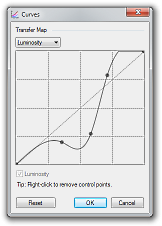
About a month ago I ported the Curves adjustment UI to use Direct2D for the transfer map (the interactive spline/grid). This meant that a rectangular portion of the form was carved out for Direct2D. If you’ve used WPF interop then you’ll be familiar with “airspace limitations”, and I was curious as to whether it would be possible to put a WinForms button on top of an area that is being rendered to with Direct2D. In other words, if you use Direct2D to render to an area of a Form, does it completely take over that rectangular area?

image 

Now, you can always take a guess, “Well of course you could/couldn’t do that because of explanation involving logical deduction or other example setting precedent.” For engineering purposes, however, something like this must be shown to work before taking a dependency on it.

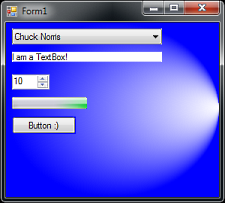
And what do you know, it does work:

image

This screenshot shows a Form that contains a single control of type “D2DThingy.” That control then has 5 children controls of various types, and they are all stock WinForms controls. Clearly, they are able to coexist peacefully and without artifacts like clipping or flickering. Like with any WinForms UI there is still a lot of work to make sure that the background of the Button matches up with what’s behind it, etc. but that is a known problem with known solutions.

This is of special importance to me because I want to write a new toolbar UI for Paint.NET v4.0. However, I absolutely do not want to write my own ComboBox or TextBox controls. I could spend a full 12 months on a globalized TextBox that can work with all languages, input types, etc. Thankfully I won’t have to.

Intel’s Xeon X5680 gives you 24 threads, empties bank account

The guys over at 2CPU are quick on the draw with a review of the brand new, can’t-even-find-it-yet Intel Xeon X5680. It’s the bigger brother to the Intel Core i7-980X, itself a monstrous 3.33GHz, 6-core CPU. The Xeon has the extra pins and needles and validation to let you hook up 2 of them for a total of 12 cores. With HyperThreading that leaves you with 24 tiny little CPU graphs in Task Manager.

Do. Want.

Apparently AMD has some crazy chips coming out with 8- and 12-cores for 4-processor configurations, albeit at very low clock speeds. Still, 48 cores is within spitting distance of giving Windows 7 / 2008 R2 the fits. I have a nagging feeling that this level of performance will never make its way down to the $300 netbook/nettop level 🙂 As-is, a brand-new dual Xeon X5680 will set you back $1,600 USD per CPU, putting a whole system in the $5K+ USD range. Well, if you could find anyone who’s selling it anyway.

But the real question is, how fast does it run Paint.NET!? One of these would certainly cut my build times, now that Paint.NET is acquiring a large amount of C++/CLI in order to properly support Direct2D and DirectWrite. Using the /MP switch with the Visual C++ compiler results in all 8 threads of my Core i7-920 @ 4.0GHz being pegged at 100% for a significant amount of time.

Core i7-920 @ 4.0GHz, struggling to build the latest PaintDotNet.SystemLayer.Native DLL’s

Upgraded the blog

Whew, that was interesting.

Anyway the blog is now upgraded to the latest WordPress, has a new theme, etc. blah blah blah. So if you saw weird stuff earlier today, that’s what was going on.

New things to look forward to include February usage stats, and a version 3.5.4 update. I was going to post January stats, but the web logs had some problem so I’m going to wait and do them for February instead.

More Thoughts on Apple’s iPad

In my previous post, I lambasted the Apple iPad as a useless device.

Miguel de Icaza has a really good post praising the iPad:

This is a whole new space in which we can research, a new space that we can explore and where we can create a whole new class of computer/user interactions. With the new form factor, we can now create applications that just made no sense on the iPhone.

It is fascinating*.

And you know what? I agree with him: for developers who’re interested in writing touch-centric UI, the iPad is potentially a great* device.

Most people, however, will not be interested in this first revision of the iPad and should absolutely wait at least for iPad 2 or the next major OS revision. The feature set is still puny, and I think it’s far too expensive for what you get.

Personally, I’m not interested in writing an iPad application, but that’s because I’m more interested in what Windows 7 and multitouch can offer. It might have something to do with the fact that Paint.NET is a Windows app.

* not magical